

NetSuite MCP Apps: Build Interactive Dashboards Inside Your AI Client

Ask Claude for “open sales orders by customer” through the NetSuite AI Connector and you get a wall of text. The data is correct, but you can’t sort it, filter it, or click into a record. NetSuite MCP Apps change that: as of 2026.1, a custom tool can ship an actual UI, built with SuiteScript and React, that renders inside the chat.

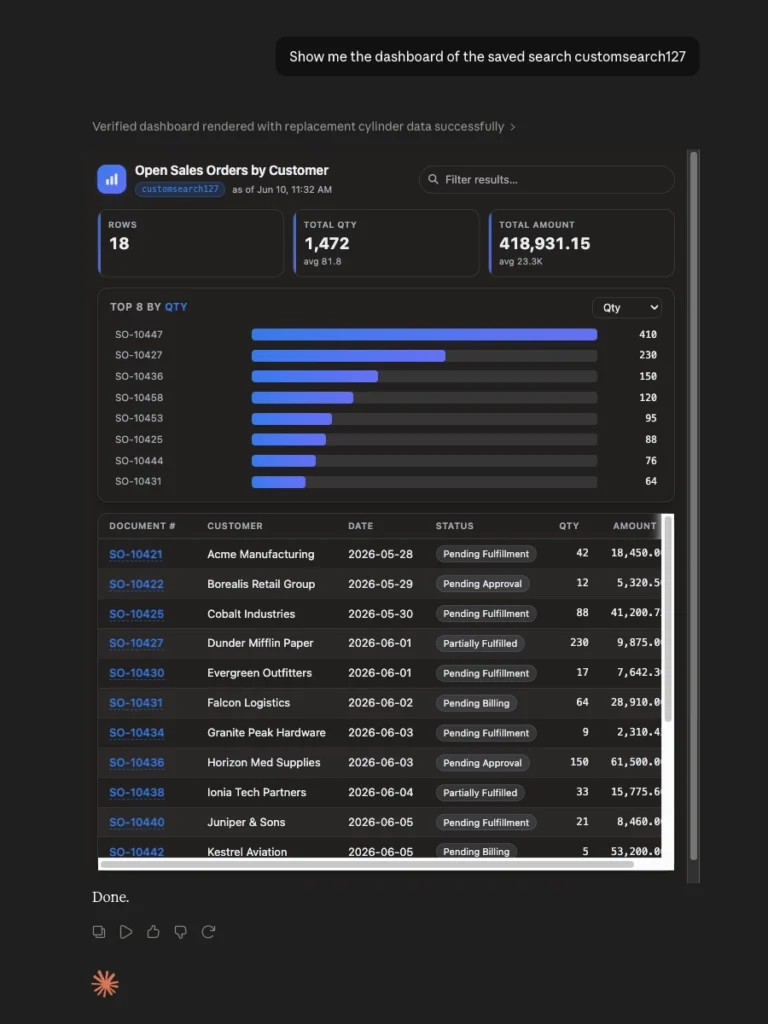
We recently built and validated one end to end: a Saved Search Dashboard that renders natively in Claude.ai. This guide covers what MCP Apps are, how NetSuite supports them, how the pieces fit together, and the gotchas that cost us a couple of hours of debugging.

NetSuite MCP Apps - Saved Search Dashboard

Table of Contents

1. What are MCP Apps?

MCP in one minute

MCP is the open standard that lets AI clients (Claude, ChatGPT, and others) call tools on external servers in a uniform way. A server publishes a list of tools with JSON schemas, the model decides when to call them, and results flow back into the conversation. NetSuite’s AI Connector Service is an MCP server.

The Apps extension

MCP Apps is an official extension to MCP that lets a tool declare an interactive HTML interface alongside its data. The naming is confusing, so a bit of history:

  • A community project, MCP-UI, pioneered the pattern: sandboxed iframe, JSON-RPC bridge, declarative UI resources.
  • OpenAI’s Apps SDK (the framework behind apps in ChatGPT) proved the demand for the same idea, using MCP as its backbone.
  • In November 2025 both lineages were merged into proposal SEP-1865, which became the official MCP Apps extension and reached Stable status with the dated spec 2026-01-26. It was co-developed by the MCP-UI creators together with maintainers from Anthropic and OpenAI.

In short: MCP-UI came first, the Apps SDK validated it, and MCP Apps is the standard that came out of both. The reference implementation is the @modelcontextprotocol/ext-apps SDK, and as of June 2026 it is supported by Claude, Claude Desktop, VS Code Copilot, Goose, Postman, and a growing list of clients.

One scope note before we go on: everything in this guide was validated in Claude.ai specifically. ChatGPT support for NetSuite custom tools depends on how its MCP Apps rollout progresses, so test before promising it to a stakeholder.

Why not just return text, or link a web app?

Compared to text, an app gives you sorting, filtering, charts, and buttons. Compared to building a separate web app and pasting a link in the chat, MCP Apps give you three things a standalone page cannot:

  • Context preservation. The UI lives inside the conversation that produced it. No tab switching, no “which chat had that dashboard?”
  • Bidirectional data flow. The app can call tools on the server and push messages back into the chat, without building your own API, auth, or state layer.
  • A security sandbox. The app runs in a sandboxed iframe controlled by the host. It cannot touch the parent page, cookies, or storage; everything goes through a controlled postMessage channel.

2. Why interactive UIs beat plain text in NetSuite's AI Connector

If you followed our NetSuite AI Connector guide, you know the baseline: NetSuite exposes tools to AI clients like Claude over the Model Context Protocol (MCP), and the model answers questions by calling those tools and narrating the results as text.

That works for lookups (“what’s the balance on customer X?”). It breaks down for anything tabular. A saved search with 80 rows and six columns comes back as a truncated summary or an unreadable markdown table. You cannot sort it or drill into a row, and every follow-up question is another round trip through the model.

MCP Apps close that gap. The tool ships an HTML interface that the AI client renders inside the conversation: the model orchestrates, the UI handles the data. For a system as table-heavy as NetSuite, this changes what the AI Connector is actually useful for.

3. How MCP Apps apply to NetSuite

NetSuite’s side of this is the AI Connector Service plus the custom tool script type, and as of 2026.1 it explicitly supports MCP Apps. From Oracle’s documentation: “With MCP App support, your custom tool can provide a bundled HTML UI that is rendered directly in compatible AI chat clients.”

Three building blocks, all deployed via SDF:

PieceWhat it isFile in our project
Custom tool scriptSuiteScript 2.1, @NScriptType CustomTool. Runs the server-side logic and returns data.ss_dashboard_ct.js
JSON schemaDeclares the tools, their input parameters, and (for MCP Apps) the UI resource via _meta.ui.resourceUri.ss_dashboard_schema.json
Toolset objectThe 2026.1 SDF object (<toolset>) that links script and schema and exposes them to the AI Connector.custtoolset_ss_dashboard.xml


Here is how those pieces sit between NetSuite and the AI client:

The toolset links script and schema; the schema points at the static HTML; the host renders it and bridges it back to the chat.

A few NetSuite-specific facts worth knowing up front:

  • Custom tool scripts have no predefined entry points. The module exports one method per tool, and the method name must equal the tool name in the schema.
  • Custom tools live at their own MCP endpoint: https://<accountid>.suitetalk.api.netsuite.com/services/mcp/v1/all (distinct from the Standard Tools SuiteApp).
  • Once deployed, the script, schema, and HTML files are locked in the File Cabinet. You can only change them through SDF redeploys.
  • Deployed toolsets show up at Customization > Scripting > Custom Tools.
  • Oracle publishes official samples at oracle-samples/netsuite-suitecloud-samples under MCP-Sample-Tools/. Sample-App is the minimal MCP App and Sample-Toolsets shows the 2026.1 toolset object. We verified our contract against Sample-App directly.
Deployed toolsets show up at Customization _ Scripting _ Custom Tools

Security and governance

The short version for whoever signs off on this:

  • Tools run with the permissions of the role that connects, never more. The AI Connector refuses Administrator and full-permission roles outright, so a scoped integration role is mandatory, not just good practice.
  • The toolset declares the permissions a tool needs (in our case, Find Transaction at View level). NetSuite enforces the saved search’s own audience and permissions at runtime on top of that.
  • This pattern is read-only by design for a first build: the tool only loads a saved search, and the schema advertises it with readOnlyHint.
  • The UI is sandboxed. The widget runs in an iframe that cannot reach the host page, its cookies, or its storage; every interaction goes through the controlled postMessage bridge.
  • Never embed secrets in the HTML. The single-file UI is fetched directly by the host and runs client-side, so anything bundled into it (tokens, keys, internal data) is visible to the user. Hidden files are not a security barrier; keep credentials server-side in the tool.

4. How NetSuite MCP Apps work under the hood

The single most important design fact, and the one most people get wrong on day one:

The tool does not return HTML. It returns data.

The UI is a static, pre-built HTML file sitting in the File Cabinet. The tool’s schema points at it through _meta.ui.resourceUri, using the ui:// scheme, which NetSuite maps onto the File Cabinet (ui://SuiteScripts/... maps to /SuiteScripts/...). The host fetches that HTML on its own and renders it in a sandboxed iframe. The file never passes through your tool, so there is no server-side templating and no token injection.

Inside the iframe, the app uses the ext-apps SDK to talk to the host over postMessage. The host pushes the tool’s CallToolResult to the app through the ontoolresult callback; the app can answer back with sendMessage (inject a message into the chat), callServerTool (invoke another tool), sendLog, and openLink.

The full sequence for our dashboard:


NetSuite MCP Apps - The full sequence for our dashboard

Two parallel paths: the tool call returns data, the host loads the static UI from the schema’s resource URI, and the bridge joins them in the iframe.

5. Worked example: the Saved Search Dashboard

Our first build is deliberately modest: run any saved search and render it as a sortable table with a text filter, per-column totals, and a top-N bar chart. Read-only. The real goal was to validate the plumbing, and it did: on the first real render in Claude.ai, the widget drew with live customsearch127 data. That’s the screenshot at the top of this article. The full SDF project behind it is available on request.
 
Before you start, you’ll need:
  • A NetSuite account on 2026.1 (the toolset object and MCP Apps support require it).
  • Server SuiteScript and OAuth 2.0 enabled (Setup > Company > Enable Features > SuiteCloud).
  • For the SuiteCloud CLI: Node.js 22 LTS and Oracle JDK 17 or 21, then npm i -g @oracle/suitecloud-cli (CLI 3.1.4 as of June 2026).
  • For the UI build: Node.js 20.19+ (we used 22.x; Vite 7 needs Node >= 20.19).
  • A saved search to render, and the permissions to run it.

5.1 The custom tool script

A SuiteScript 2.1 AMD module whose exported method name matches the tool name. It loads the search, caps rows at 200 (the chat does not want 10k rows), and returns plain data:

/**
 * @NApiVersion 2.1
 * @NScriptType CustomTool
 */
define(['N/search'], function (search) {

  async function runDashboard(args) {
    var ss = search.load({ id: args.savedSearchId });
    // ... runPaged, map columns and rows (capped at 200) ...

    return {
      // Model-facing text: do not narrate, wait for the app.
      toClaude: 'Ignore this response, it is intended only for the MCP App ss_dashboard. ' +
        'The interactive dashboard for "' + args.savedSearchId + '" (' + total +
        ' rows) is now rendered; wait until the app tells you to continue.',
      // Payload for the app. The bridge delivers it via app.ontoolresult.
      dashboard: dashboard
    };
  }

  return { runDashboard: runDashboard };
});

Notice the two halves of the return value. toClaude is text aimed at the model, telling it not to re-narrate data the widget is already showing. dashboard is a plain JSON contract the app understands:

{
  "title": "string",
  "savedSearchId": "string",
  "columns": [{ "label": "...", "key": "...", "type": "text|number|date|currency" }],
  "rows": [{ "<key>": "value", "__id": "internalId" }],
  "meta": { "total": 0, "truncated": false, "generatedAt": "ISO" }
}

5.2 The JSON schema, where the UI is declared

The UI lives in the schema, not in the return value. annotations give the client hints (read-only, idempotent), and _meta.ui.resourceUri is what turns a normal tool into an MCP App:

{
  "tools": [{
    "name": "runDashboard",
    "description": "Runs a NetSuite saved search and shows it as an interactive dashboard...",
    "inputSchema": {
      "type": "object",
      "properties": {
        "savedSearchId": { "type": "string", "description": "scriptId or internal id of the saved search" },
        "limit": { "type": "number", "description": "Max rows to fetch (cap 200)" }
      },
      "required": ["savedSearchId"]
    },
    "annotations": {
      "title": "NetSuite Saved Search Dashboard",
      "readOnlyHint": true,
      "idempotentHint": true,
      "openWorldHint": false
    },
    "_meta": {
      "ui": { "resourceUri": "ui://SuiteScripts/mcp-ss-dashboard/mcp-app.html" }
    }
  }]
}

NetSuite documents the supported inputSchema property types as string, number, and boolean, so use number (not integer). Keep this file ASCII-only and avoid the JSON Schema default keyword; if you do not, NetSuite silently drops the whole file and none of your tools show up (see Gotcha #1).

5.3 The toolset SDF object

The 2026.1 toolset object ties script and schema together and declares the permissions required for the tool to be visible in the AI client. Runtime access is still limited by the connected NetSuite role:

<toolset scriptid="custtoolset_ss_dashboard">
  <name>Saved Search Dashboard</name>
  <scriptfile>[/SuiteScripts/mcp-ss-dashboard/ss_dashboard_ct.js]</scriptfile>
  <rpcschema>[/SuiteScripts/mcp-ss-dashboard/ss_dashboard_schema.json]</rpcschema>
  <exposetoaiconnector>T</exposetoaiconnector>
  <permissions>
    <permission>
      <permkey>TRAN_FIND</permkey>
      <permlevel>VIEW</permlevel>
    </permission>
  </permissions>
</toolset>

5.4 The React app and the ext-apps bridge

The UI is an ordinary React app. The bridge is a single hook from @modelcontextprotocol/ext-apps/react:

import { useApp } from "@modelcontextprotocol/ext-apps/react";

const { app, isConnected, error } = useApp({
  appInfo: { name: "ss_dashboard", version: "1.0.0" },
  capabilities: {},
  onAppCreated: (instance) => {
    instance.ontoolresult = async (result) => {
      const dashboard = extractDashboard(result);
      if (dashboard) setData(dashboard);
    };
  },
});

extractDashboard() reads the CallToolResult defensively: it tries result.structuredContent first, then falls back to parsing result.content[].text as JSON. The reason is that Oracle’s docs do not pin down exactly how NetSuite wraps your return object into the CallToolResult the host delivers. Reading both shapes meant our first render worked without a second deploy.

The bidirectional hook is already wired in. Clicking a row’s first column sends a message back into the conversation:

void app.sendMessage({
  role: "user",
  content: [{ type: "text",
    text: `Open the record "${label}" (internal id ${id}) from saved search ${data.savedSearchId}.` }],
});

The user clicks a row and Claude picks the thread back up with that record in context.

5.5 Build: one self-contained HTML file

The iframe is sandboxed, so assume no CDN access at runtime. We use Vite with vite-plugin-singlefile to inline React, the SDK, and the CSS into one self-contained HTML file (about 540 KB), then copy it into the File Cabinet folder:

npm install              # once: installs the app workspace
npm run ss_dashboard     # tsc + vite singlefile -> src/FileCabinet/.../mcp-app.html

Theme with the host’s CSS variables (with fallbacks) and do not import fonts. The widget should inherit the client’s look and feel.

5.6 Deploy with SDF

suitecloud account:setup              # once: auth id
suitecloud project:validate --server  # validate against the real 2026.1 account
suitecloud project:deploy

Local validation will complain that the toolset is “categorized as a data file”. Ignore it (Gotcha #2) and use --server validation, which knows the 2026.1 types.

5.7 Connect Claude

  1. Create a non-Administrator role with MCP Server Connection (ADMI_MCP_SERVER), Log in using OAuth 2.0 Access Tokens (ADMI_LOGIN_OAUTH2), and whatever permissions the saved search needs at runtime.
  2. In Claude.ai: Settings > Connectors > Add custom connector and paste:
https://<accountid>.suitetalk.api.netsuite.com/services/mcp/v1/all
  1. Connect, complete OAuth, and log in with the non-admin role.
NetSuite MCP Apps - Custom Connector
Once connected, the tool appears in the connector’s tool list under Interactive. That section exists precisely because of _meta.ui.

5.8 Test

In a new chat:

“Use runDashboard to show me the dashboard for saved search customsearch127”

Expected: Claude calls the tool, the widget mounts, and the dashboard draws with live rows. If the frame mounts but sits on “Waiting for the saved search data…”, the NetSuite-to-ontoolresult mapping did not match your extractor. Open the iframe’s devtools console, inspect the actual CallToolResult, and adjust.

6. Lessons learned: five hard-won gotchas

These cost us roughly two hours of debugging, and none of them are in the docs.

  1. The AI Connector’s schema parser is strict and fails silently. If tools[].inputSchema contains anything non-standard, NetSuite drops the entire schema file and none of its tools appear in tools/list. There is no error and no log. Confirmed culprits: the JSON Schema "default" keyword on a property, and non-ASCII characters (accented letters) in description fields. Keep schemas ASCII-only and stick to the subset Oracle’s samples use: name, description, inputSchema (type, properties, required), annotations, _meta.ui. This was the root cause of our tool “not existing” for most of those two hours.
  2. The public SuiteCloud SDK does not know the 2026.1 toolset type. As of June 2026 the public SuiteCloud CLI package is 3.1.4, but the bundled SuiteCloud SDK still targets 2025.2.1, so local project:validate degrades the toolset to “data file” and object:import fails with “Invalid Record Type”. Both are red herrings: the server-side deploy creates the object correctly. Validate with --server and move on.
  3. Use a custom connector, not the directory tile. The “NetSuite” tile in Claude’s connector directory is the MCP Standard Tools connector; it validates only the SuiteApp URL format and rejects the /services/mcp/v1/all custom-tools endpoint. “Add custom connector” is the way in.
  4. Do not connect as Administrator. The AI Connector hides all tools from the Administrator role (and any full-permission role). Use a scoped role with the two MCP permissions plus the tool’s runtime permissions.
  5. Reconnect after every deploy. The client caches the tool list at connect time. Disconnect, then Connect, to pick up new or changed tools before you start debugging something that is already fixed.

7. Use cases and roadmap

A read-only dashboard is step one. The same architecture supports a lot more, and this is where we are taking it:

  1. Read-only dashboards (done). Any saved search becomes an interactive widget in chat: pipeline reviews, AR aging, inventory snapshots.
  2. Bidirectional action panels. The row-click hook already calls app.sendMessage. Upgrading it to app.callServerTool lets buttons in the widget trigger server-side tools: fulfill an order, apply a payment, approve a record, with the user in the loop.
  3. Approval and edit flows. For example, a replenishment approver that shows suggested POs in an editable grid, lets the buyer adjust quantities, and creates the purchase orders on confirm. The conversation becomes the workflow.

The general shape: any NetSuite process that today means “open a list, scan it, click into a few records, take an action” can become a single prompt plus a purpose-built widget.

8. NetSuite MCP Apps: where this goes next

NetSuite MCP Apps work today, and the developer experience is closer to “normal SuiteScript plus normal React” than you might expect: a CustomTool script that returns data, a JSON schema pointing at a static single-file HTML, a 2026.1 toolset object, and the ext-apps bridge in between. The hard part is not the architecture; it is the sharp edges: a schema parser that fails silently, a CLI one version behind, the wrong connector tile, the wrong role. All of those are covered above.

If you are looking at what conversational, interactive interfaces could do for your NetSuite processes, from read-only dashboards to approval workflows, that is the kind of work we do at UnlockCommerce. As a NetSuite Alliance Partner with 350+ eCommerce projects delivered, we can help you scope it. Get in touch and let’s talk about your use case.

Frequently asked questions​

Yes. As of NetSuite 2026.1, a custom tool can ship a bundled HTML interface that renders inside compatible AI clients. NetSuite calls this MCP App support. The tool returns data, NetSuite serves a static HTML file from the File Cabinet, and the AI client renders it in a sandboxed iframe.

The AI Connector Service is NetSuite’s MCP server. It lets AI clients call tools and get results back as text. An MCP App adds an interactive interface to a custom tool, so a tabular saved search renders as a sortable, filterable widget instead of a wall of text.

This build was validated in Claude specifically. The MCP Apps extension is supported by a growing list of clients, but ChatGPT support for NetSuite custom tools depends on how its rollout progresses. Test in your target client before committing to it with a stakeholder.

Tools run with the permissions of the connected role, never more, and the AI Connector refuses Administrator and full-permission roles. The UI is sandboxed and cannot reach the host page, its cookies, or its storage. Keep credentials server-side and never bundle secrets into the HTML file.

The most common cause is a schema the parser rejects silently. A JSON Schema “default” keyword, or a non-ASCII character in a description, makes NetSuite drop the entire schema file with no error and no log. Keep schemas ASCII-only, and confirm you are not connecting as Administrator.

A NetSuite account on 2026.1, Server SuiteScript and OAuth 2.0 enabled, the SuiteCloud CLI (Node.js 22 LTS and Oracle JDK 17 or 21), and Node 20.19+ for the UI build. You also need a saved search to render and a scoped, non-Administrator role.

Need help with NetSuite MCP Apps or AI Connector work?

We are here to help. Talk to our team of NetSuite experts.
Picture of Fabian Rodriguez

Fabian Rodriguez

Tech Lead with a strong background in software engineering and extensive experience developing customized NetSuite solutions. He brings a wealth of technical expertise to the team and is dedicated to delivering high-quality, efficient, and scalable solutions for our clients' eCommerce needs. With a keen focus on maintainability and long-term performance, Fabian plays a key role in designing and implementing customizations that help clients improve their processes and achieve their goals.

Share this post

You may also like

Shopify B2B features now available on non-Plus plans

Shopify is bringing native B2B features to merchants on Basic, Grow, and Advanced plans at no extra cost. Here is what is now available, what is still Plus-only, and how to plan your wholesale setup.