


Author picture

Fabian Rodriguez

NetSuite AI Connector Service: The ultimate guide

Hi UnlockCommerce - NetSuite AI Connector

Table of Contents

Getting started

The NetSuite AI Connector Service, built on the Model Context Protocol (MCP), allows you to securely integrate your preferred AI (such as Claude AI) with NetSuite—without locking into a single provider.
 
This step-by-step guide walks you through installing the MCP Tools SuiteApp, setting up permissions, connecting your AI client, and extending functionality with custom tools.
 

1. Review NetSuite’s Recommendations

AI Agents in NetSuite: Risks, Controls, and Best Practices

AI agents and large language models (LLMs) bring powerful capabilities to NetSuite, but they also introduce potential risks such as prompt injection—malicious hidden instructions—and hallucination—plausible but incorrect information. These issues can lead to unintended actions, data changes, or disclosure of sensitive information.
 
NetSuite’s Model Context Protocol (MCP) integration includes safeguards to minimize these risks: MCP access is disabled by default, permissions must be explicitly granted, tools run only with the invoking user’s permissions (never Administrator), and access is restricted to a limited subset of SuiteScript API functions. All MCP tool usage is logged for traceability, and administrators control which tools are installed and available.
 
To safely leverage AI in NetSuite, best practices include using only trusted AI agents, MCP servers, and tools; limiting access to necessary users; starting with a reduced scope when testing; training users on risks; and applying technical safeguards such as running sensitive tools in secure environments.
 

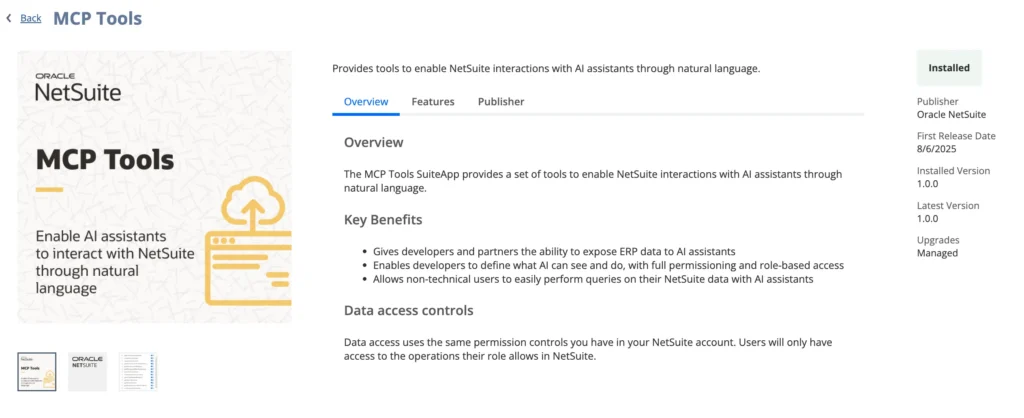
2. Install the MCP Tools SuiteApp

  1. In NetSuite, navigate to:
  2. Customization → SuiteCloud Development → SuiteApp Marketplace
  3. Search for MCP Tools.
  4. Select the MCP Tools SuiteApp and click Install.
  5. Wait for installation to complete.

Tip: If installation fails, your MCP client will display an empty list of tools. Even after a successful install, tools may not appear if your role lacks the proper permissions.

3. Create and Assign a Custom Role

MCP cannot be used with the Administrator role. Instead:
 
  1. Create a custom role specifically for MCP access.
  2. Assign the minimum required permissions, plus any transaction or record-level permissions needed for your use case.
  3. At a minimum, the role must include:
      • Log in using OAuth 2.0 Access Tokens
      • MCP Server Connection
  4. Grant this role to the users who will integrate with the AI Connector.
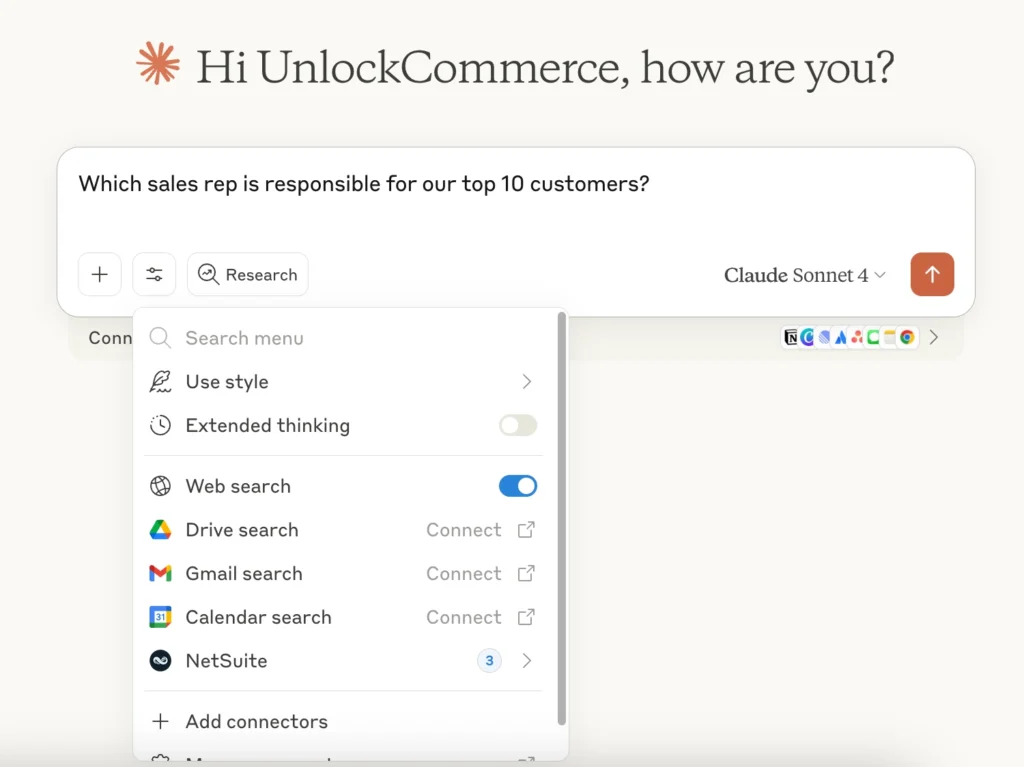
NetSuite AI Connector Service

4. Connect Your AI Client (Example: Claude AI)

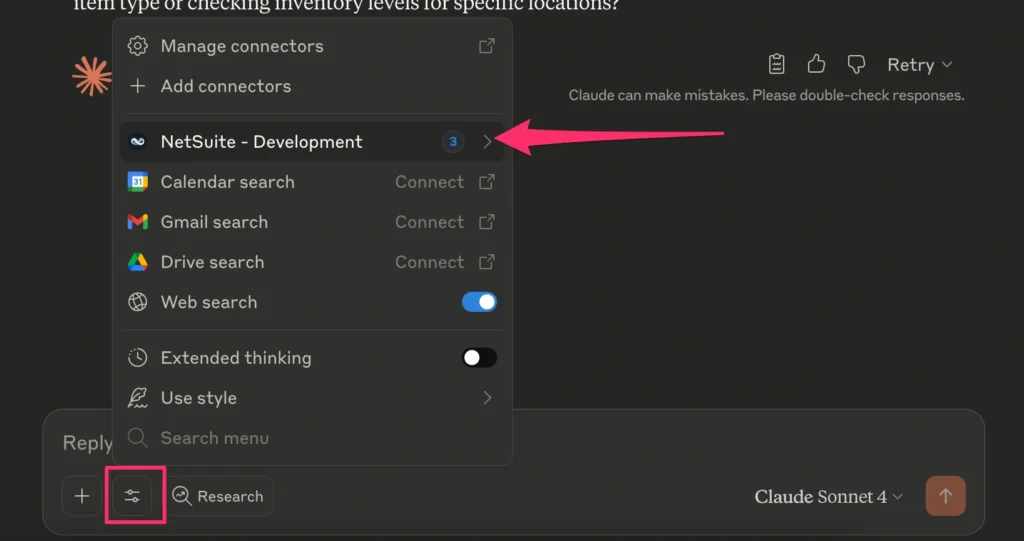
  1. Open Claude AI – note that the Pro plan is required for custom connectors.
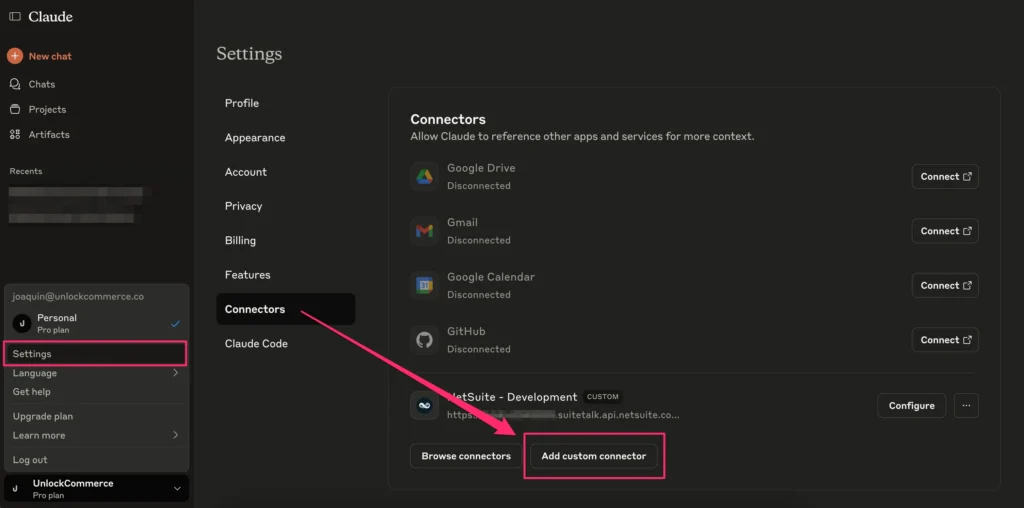
  2. Go to Profile → Settings → Add Custom Connector.
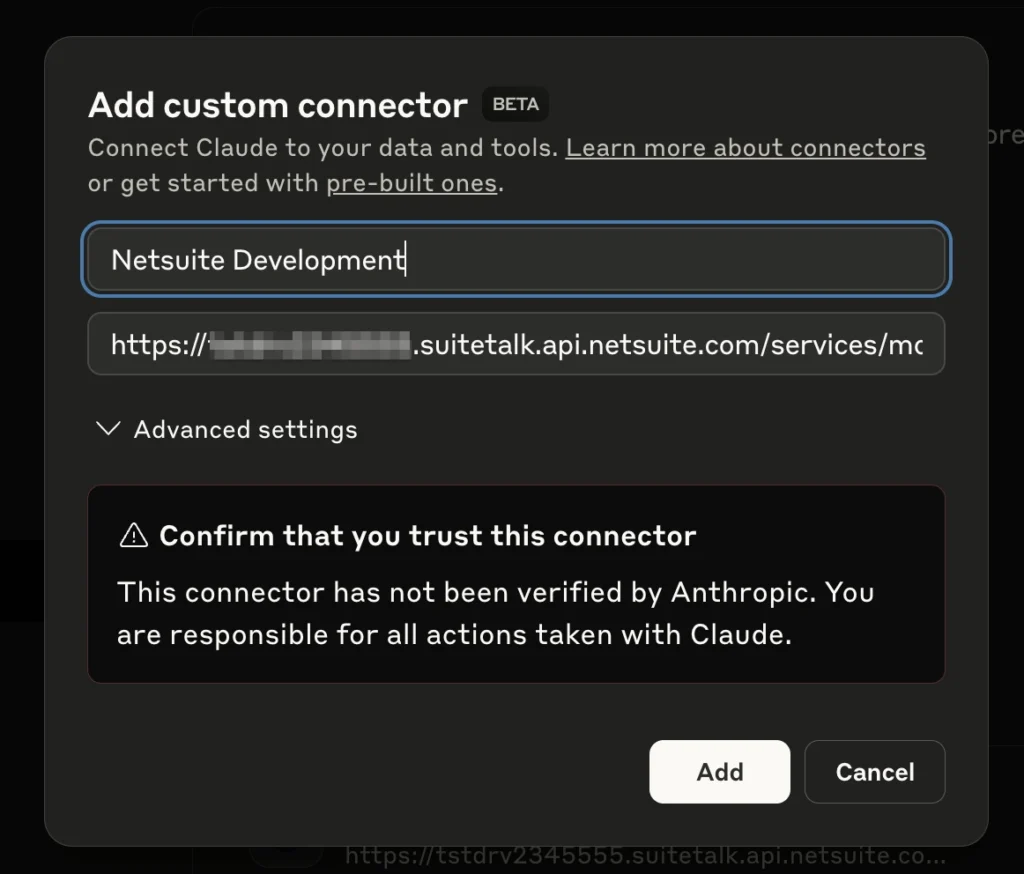
  3. Enter:
    • Name: Any label you choose (optionally include an identifier).
    • URL: Your account’s URL + /services/mcp/v1/all
    • Example: https://<account_id>.suitetalk.api.netsuite.com/services/mcp/v1/all
  4. Click Connect.
  5. Select your MCP-enabled role and confirm access.
  6. A new integration record will be automatically created in:
    Setup → Integrations → Manage Integrations.
Connect Your AI Client (Example Claude AI) | NetSuite AI Connector Service
Add custom connector | NetSuite AI Connector

5. Explore Available Tools

Included MCP Tools in NetSuite

The MCP Tools SuiteApp provides a set of predefined SuiteScript-based tools that demonstrate how conversational AI can interact with NetSuite’s data and processes. These tools use the same framework available to SuiteCloud developers, meaning you can extend them or build your own. All parameters passed to a tool are validated, and required fields must be included in the request.
 
The predefined tools offer capabilities such as:
  • Customer management – Create, update, search, and retrieve detailed customer records, balances, and transactions.
  • Sales orders – Retrieve single orders, search with filters, and get detailed line item data.
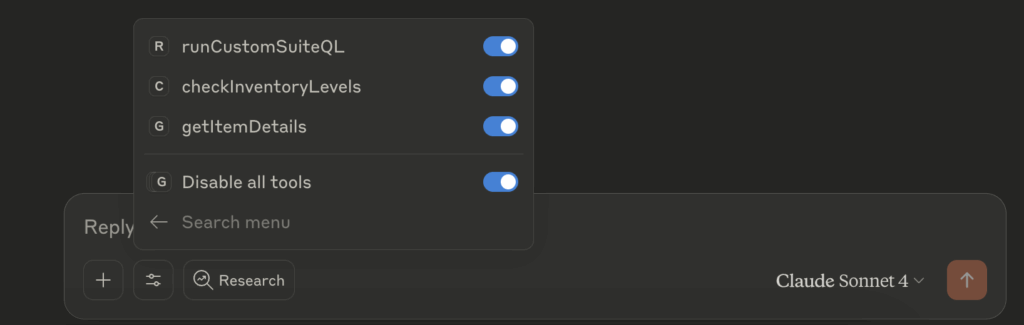
  • Inventory – View item details and check inventory levels by location.
  • Reporting – Run custom SuiteQL queries, generate sales reports, and view financial performance summaries.
 
Tools can be triggered using natural language prompts, with the client requesting user confirmation before execution. Most tools require view permissions, while creating or updating customers requires edit permissions. SuiteQL does not have a special tool permission, but its results are still limited by the user’s role permissions in NetSuite.
 

6. Use Conversational Prompts

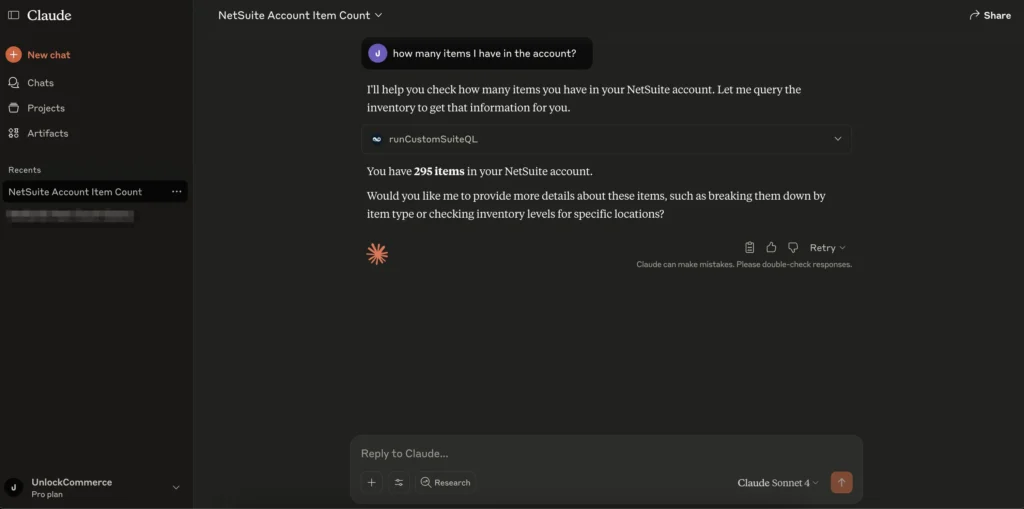
Simply type your request in natural language—for example:

“How many items do I have in the account?”

The AI will interpret the request, call the appropriate MCP tool, and return the results.

Claude - NetSuite Account Item Count

7. Automate and Iterate

You can now:
  • Query NetSuite data conversationally.
  • Run actions and workflows from your AI.
  • Expand with custom tools for more complex automations.

8. Build Your Own Custom Tools

SuiteScript 2.1 Custom Tool Script Overview

You can extend the MCP Tools SuiteApp by creating your own custom tools tailored to your business processes. This involves:
 
  • SuiteScript file – Defines your tool’s actions. Each method can be exposed as a separate tool in the schema.
  • Tool schema (JSON) – Specifies the tool’s name, description, input parameters (types, descriptions, required fields), and annotations (title, read-only, idempotent, and open-world flags).
  • SDF object – Manages the tool’s deployment and configuration in NetSuite.

Note: Certain modules, such as N/http, N/https, and N/search, are not supported in custom tools.

These definitions tell external AI clients how and when to use your tool.
 
Common pitfalls include using unsupported modules, missing parameters, or lacking permissions. Running a custom tool can also trigger other NetSuite scripts and workflows, which will execute under the role configured for the NetSuite AI Connector (unless workflows are set to run as Administrator).
 
Need a custom MCP module? Our team at UnlockCommerce can design and develop tailored MCP tools to fit your specific workflows and business needs.

Final Note

Getting started with the NetSuite AI Connector is straightforward. By setting it up once, you open the door to a powerful AI-driven interface for NetSuite—ready to evolve as new tools and features are released.

Ready to unlock the full potential of AI in NetSuite?
Whether you need to enable the AI Connector, optimize existing MCP tools, or build advanced custom integrations, our team can guide you from concept to deployment.
Picture of Fabian Rodriguez

Fabian Rodriguez

Tech Lead with a strong background in software engineering and extensive experience developing customized NetSuite solutions. He brings a wealth of technical expertise to the team and is dedicated to delivering high-quality, efficient, and scalable solutions for our clients' eCommerce needs. With a keen focus on maintainability and long-term performance, Fabian plays a key role in designing and implementing customizations that help clients improve their processes and achieve their goals.

Share this post

You may also like

Scripting Types, Tips & Tricks for Developers

SuiteScript 2.x and 2.1 bring modularity, performance gains, and modern JavaScript features to NetSuite. This article explores scripting types, governance strategies, and tips developers can apply to build scalable, secure, and business-ready solutions.